How to Create a Profile Picture Frame in PicBorder (Step-by-Step)
Follow these simple steps to customize and save a profile photo using the updated PicBorder workflow:
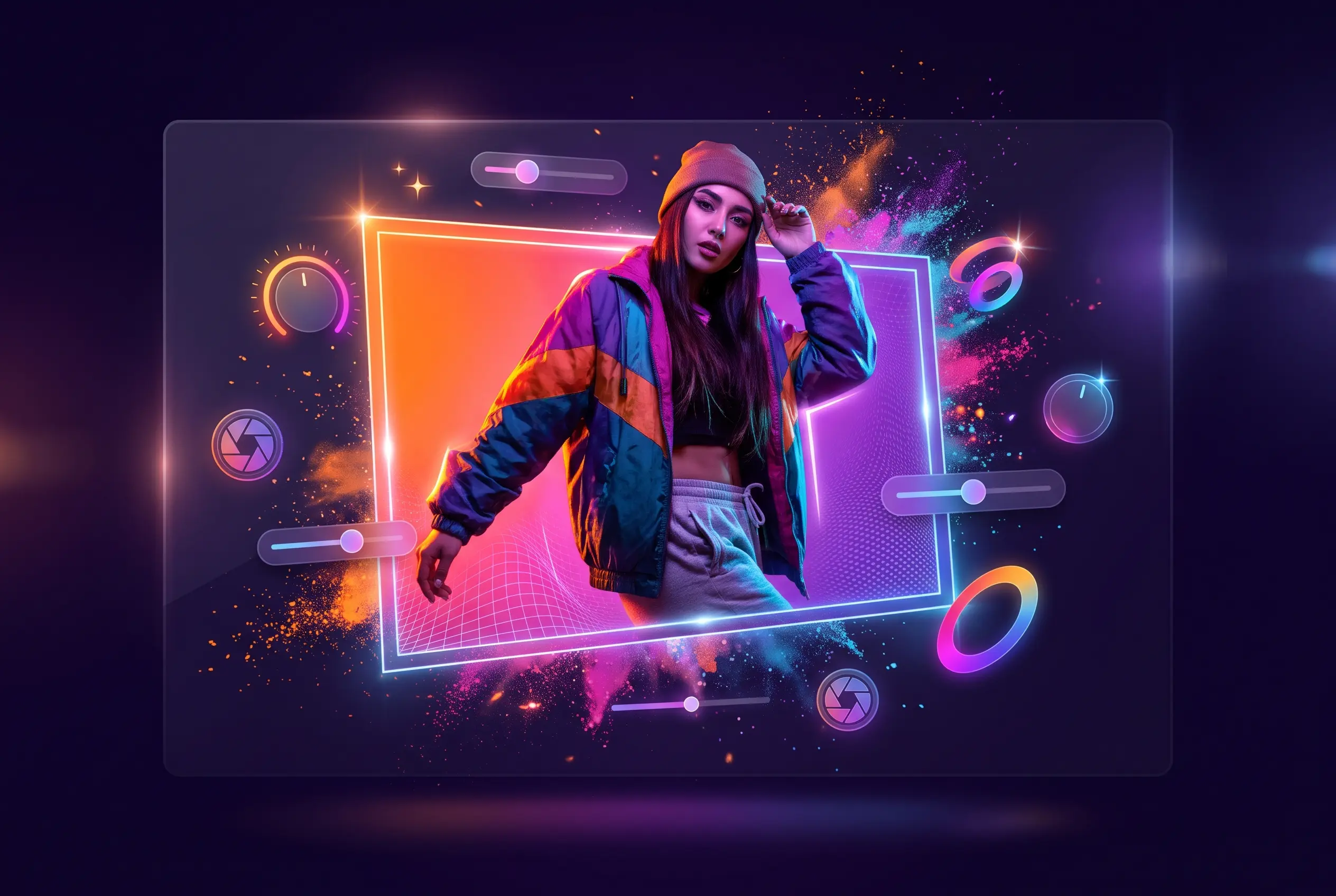
- Select or Prepare Your Photo: Start with a clear portrait or profile photo. If needed, use the photo editor tools (such as Remove BG, Blur, Sticker, or Text) and tap Save to confirm your base edit.
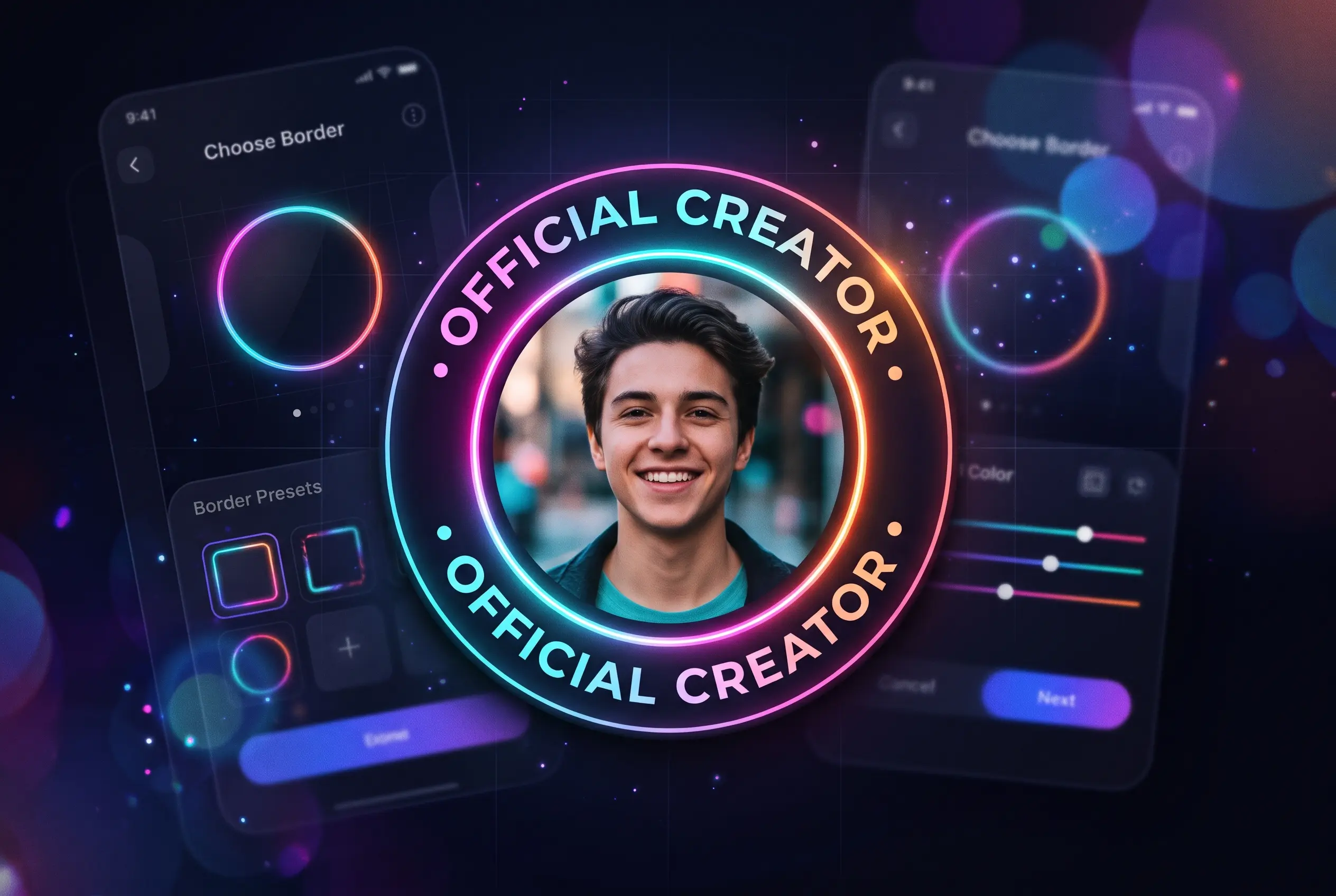
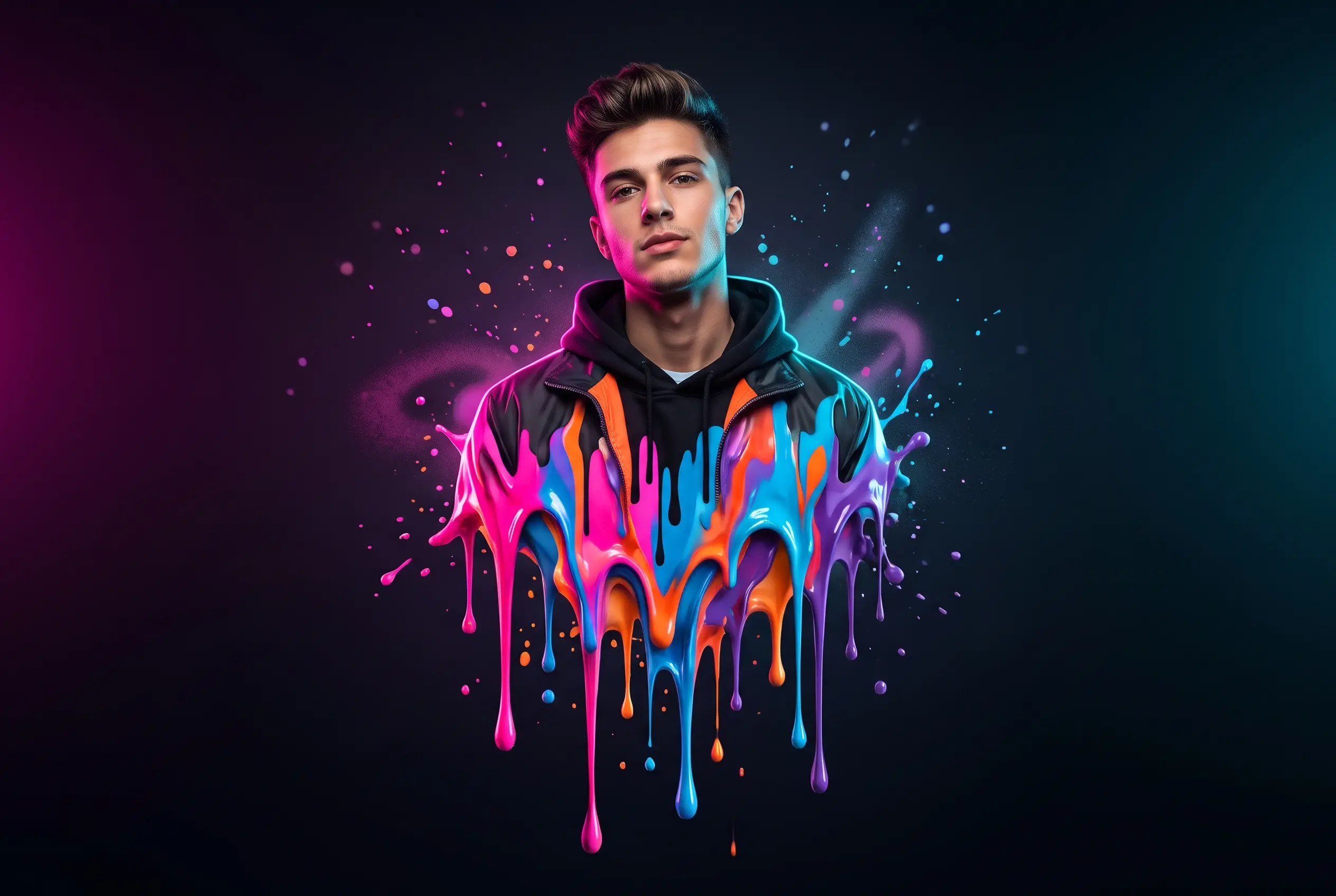
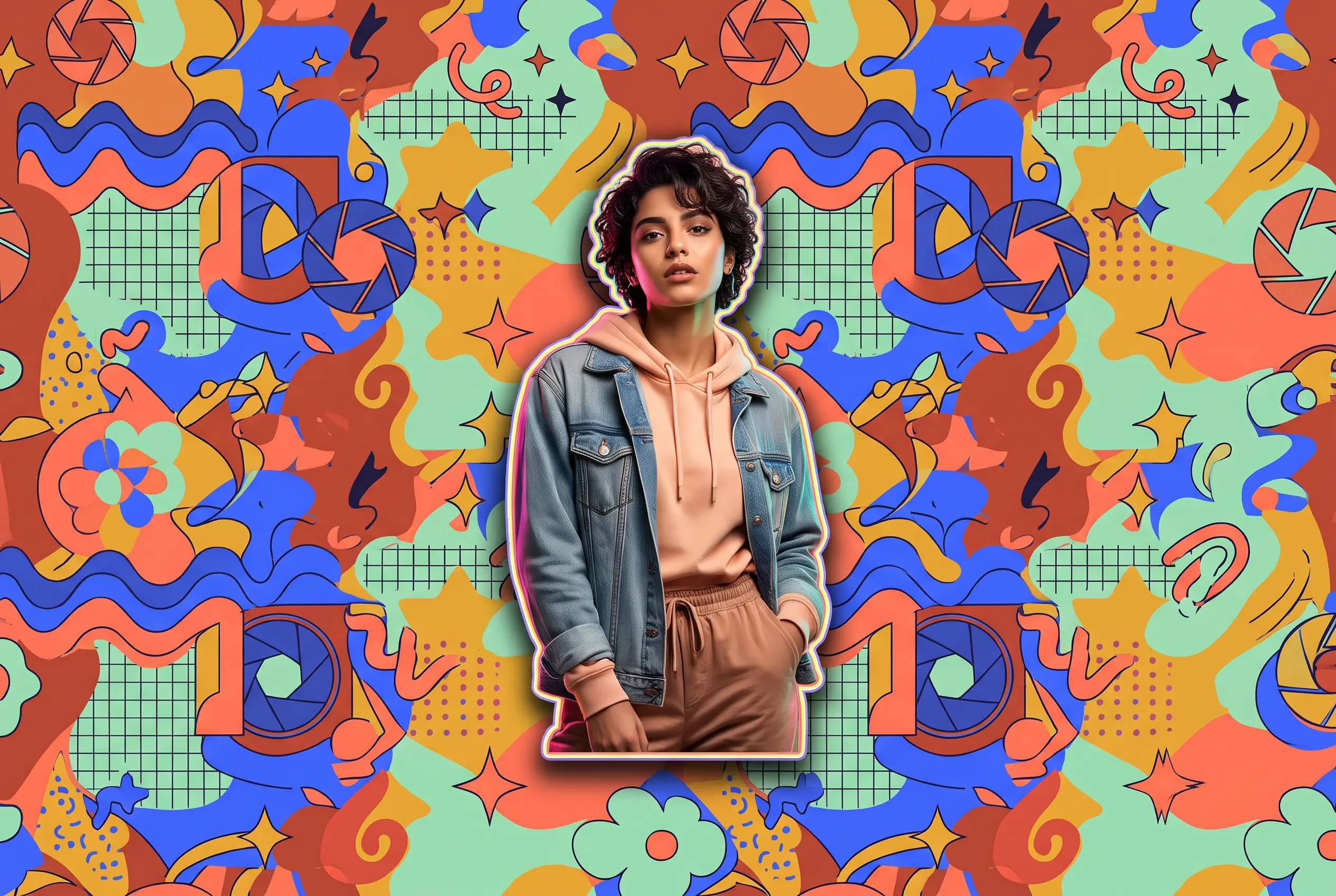
- Pick a Frame or Art Style: Open Profile Pic Frame to choose from categories like Royal, VIP, Logo, Design, or Birthday, or switch to Drip Art or Pattern Art for a stylized cutout look.
- Customize Borders, Curves & Text: Adjust your subject placement, apply frame or border styling, and add curved or straight text using the text and layout controls.
- Export & Share: Complete your edit to reach the Download Completed screen, then check View in Gallery, browse your Saved Photos list anytime, or share directly to WhatsApp, Facebook, or Instagram.

Free vs. PicBorder PRO: What to Expect
The app offers core profile border and editing features for free while locking select premium templates, filters, stickers, and ad-free options behind PicBorder PRO:
- Free Access: Includes access to standard social profile borders, custom color choices, and basic editing tools, with certain frames/presets marked with a lock icon and ad-supported usage.
- PicBorder PRO Benefits: Unlocks exclusive frames, drip and pattern art options, pro filters and colors, pro stickers and mosaic tools, and an ad-free editing experience.
- Subscription Plans & Billing Notes: The paywall displays Weekly (7 Days Access), Monthly (Most popular, listed at BDT 1,400.00/month in the app screen), and Yearly (Save 66%) options billed through your Google Play account, with auto-renewal unless canceled at least 24 hours before the current period ends via Google Play > Subscriptions.
Tips for Getting Clean, High-Impact Profile Pictures
To get the sharpest result on circular or square social media profile slots, keep these practical tips in mind:
- Center Your Subject Properly: Social platforms crop profile photos tightly—keep faces and key details centered inside the inner circle or frame area so nothing gets clipped.
- Avoid Cluttered Text & Crowded Overlays: Short names or concise profile phrases read much more clearly on small mobile screens than long sentences.
- Match Colors to Your Vibe: Pair clean borders or soft gradients with natural portraits, and reserve high-contrast VIP or festival frames for special occasions or themed profiles.
Final Thoughts
With its updated interface, categorized frame tabs, curved text options, Drip Art and Pattern Art modes, and Saved Photos management, PicBorder is a handy mobile option for creating stylish profile pictures quickly. If you want to try even more styles or tools on the site, explore our Stylish Profile Tricks, Photos, and AI guides.
Explore Related Apps & Stylish Tools
PicBorder—the updated version of the Profile Picture Frame app—brings a cleaner, faster editing experience for anyone who wants standout profile photos for Facebook, WhatsApp, Instagram, Imo, or messaging profiles. With its refreshed interface, users can easily add profile picture borders, curved custom text, drip art, pattern backgrounds, and photo adjustments without needing complex desktop editing software.
Whether you want a bold VIP or royal border, a clean circular PFP with a personalized profile message, or an artistic cutout effect, the updated PicBorder app puts practical editing controls right at your fingertips.
What Is New in the Updated PicBorder App?
Based on the latest app screens, PicBorder organizes its main editing tools clearly so you can move from choosing a base photo or frame to exporting a finished profile picture smoothly:
- Categorized Profile Pic Frames: Browse frame collections organized into tabs such as All, Royal, VIP, Logo, Design, and Birthday, including clean circular cutouts, neon rings, wings, badges, and festive or special-occasion borders.
- Curved & Custom Text (PFP Border & Text Tools): Add custom names or profile lines—such as a name tag or a curved message like “Than you for visit my profile”—and fine-tune text using Text-1, Text-2, Border, Add, Curve, Color, Size, and Fonts controls.
- Drip Art & Pattern Art Effects: Create modern cutout visuals using Drip Art (with shape presets like PT1–PT6 plus Drip, Border, Color, and Sticker options) or Pattern Art (featuring geometric and radial patterns alongside Pattern, Color, Gradient, Border, Adjust, and Sticker tools).
- Photo Editor & Background Tools: Edit base photos directly with quick bottom-bar tools including Text, Draw, Sticker, Add Photo, Remove BG, and Blur before applying borders or saving.
- Saved Photos Library & Instant Sharing: View and manage previously created images inside Saved Photos (with quick preview and delete actions), and share completed images directly to WhatsApp, Facebook, Instagram, or open them in your gallery after Download Completed.
How to Create a Profile Picture Frame in PicBorder (Step-by-Step)
Follow these simple steps to customize and save a profile photo using the updated PicBorder workflow:
- Select or Prepare Your Photo: Start with a clear portrait or profile photo. If needed, use the photo editor tools (such as Remove BG, Blur, Sticker, or Text) and tap Save to confirm your base edit.
- Pick a Frame or Art Style: Open Profile Pic Frame to choose from categories like Royal, VIP, Logo, Design, or Birthday, or switch to Drip Art or Pattern Art for a stylized cutout look.
- Customize Borders, Curves & Text: Adjust your subject placement, apply frame or border styling, and add curved or straight text using the text and layout controls.
- Export & Share: Complete your edit to reach the Download Completed screen, then check View in Gallery, browse your Saved Photos list anytime, or share directly to WhatsApp, Facebook, or Instagram.
Free vs. PicBorder PRO: What to Expect
The app offers core profile border and editing features for free while locking select premium templates, filters, stickers, and ad-free options behind PicBorder PRO:
- Free Access: Includes access to standard social profile borders, custom color choices, and basic editing tools, with certain frames/presets marked with a lock icon and ad-supported usage.
- PicBorder PRO Benefits: Unlocks exclusive frames, drip and pattern art options, pro filters and colors, pro stickers and mosaic tools, and an ad-free editing experience.
- Subscription Plans & Billing Notes: The paywall displays Weekly (7 Days Access), Monthly (Most popular, listed at BDT 1,400.00/month in the app screen), and Yearly (Save 66%) options billed through your Google Play account, with auto-renewal unless canceled at least 24 hours before the current period ends via Google Play > Subscriptions.
Tips for Getting Clean, High-Impact Profile Pictures
To get the sharpest result on circular or square social media profile slots, keep these practical tips in mind:
- Center Your Subject Properly: Social platforms crop profile photos tightly—keep faces and key details centered inside the inner circle or frame area so nothing gets clipped.
- Avoid Cluttered Text & Crowded Overlays: Short names or concise profile phrases read much more clearly on small mobile screens than long sentences.
- Match Colors to Your Vibe: Pair clean borders or soft gradients with natural portraits, and reserve high-contrast VIP or festival frames for special occasions or themed profiles.
Final Thoughts
With its updated interface, categorized frame tabs, curved text options, Drip Art and Pattern Art modes, and Saved Photos management, PicBorder is a handy mobile option for creating stylish profile pictures quickly. If you want to try even more styles or tools on the site, explore our Stylish Profile Tricks, Photos, and AI guides.